
How to Create a Custom Temporary Email Inbox
Choose a custom temporary email name in Temporarly. See real desktop and mobile steps, understand receive-first mail, and check expiry before sharing.
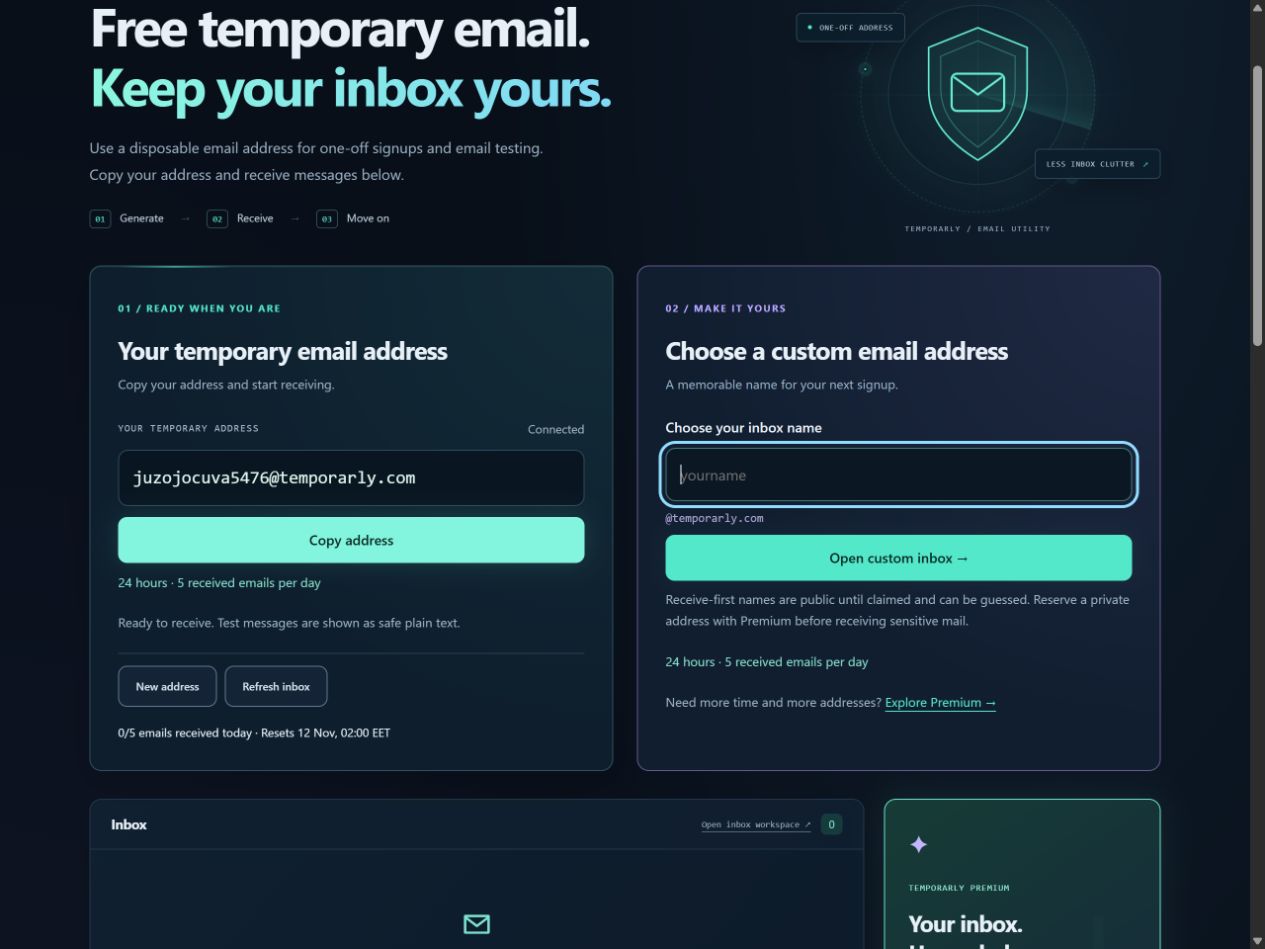
Quick answer: Choose Custom address on the homepage, enter a name, and select Open custom inbox. The tool opens the mailbox and shows its remaining lifetime. Use the full displayed address when sending.
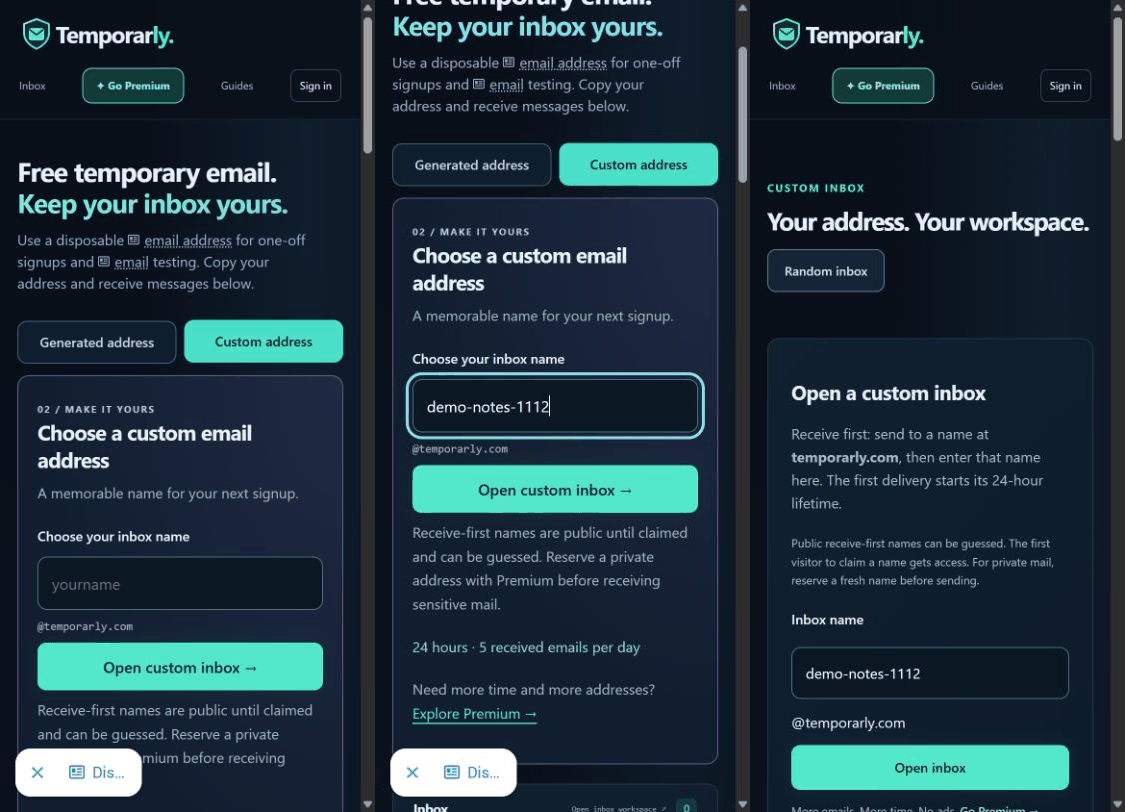
These screenshots show the live guest tool on desktop and mobile on 12 November 2026. demo-notes-1112 is our example, not a name to copy: choose a fresh, hard-to-guess name for your own short-lived task.
1. Find the custom address option
On desktop, the custom form sits beside the generated address. On a phone, tap Custom address above the card. You do not need to scroll past the generated inbox to switch.
2. Enter the name, then check the domain
Type the part before the @ symbol in Choose your inbox name. The domain is displayed underneath. For example, a name such as demo-notes-1112 combines with @temporarly.com to form a complete email address.
Avoid birthdays, phone numbers and other personal details in the name. The tool will explain if a name is unavailable or an allowance is reached. Retired names cannot be reclaimed.
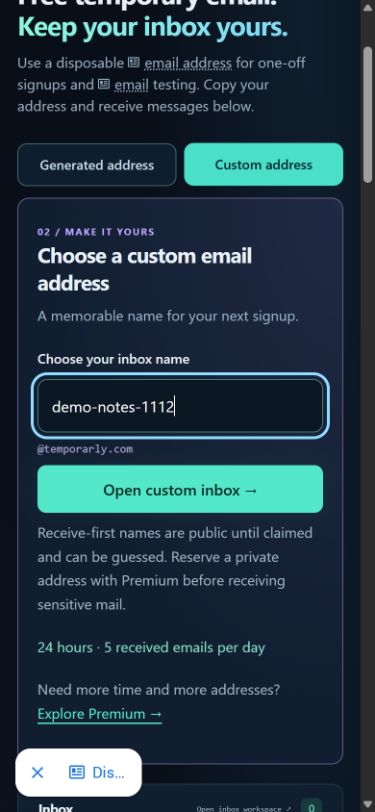
3. Open the custom inbox
Select Open custom inbox. Wait for Inbox opened, then check the selected address and countdown. Opening an existing address available in your session is different from creating another address.
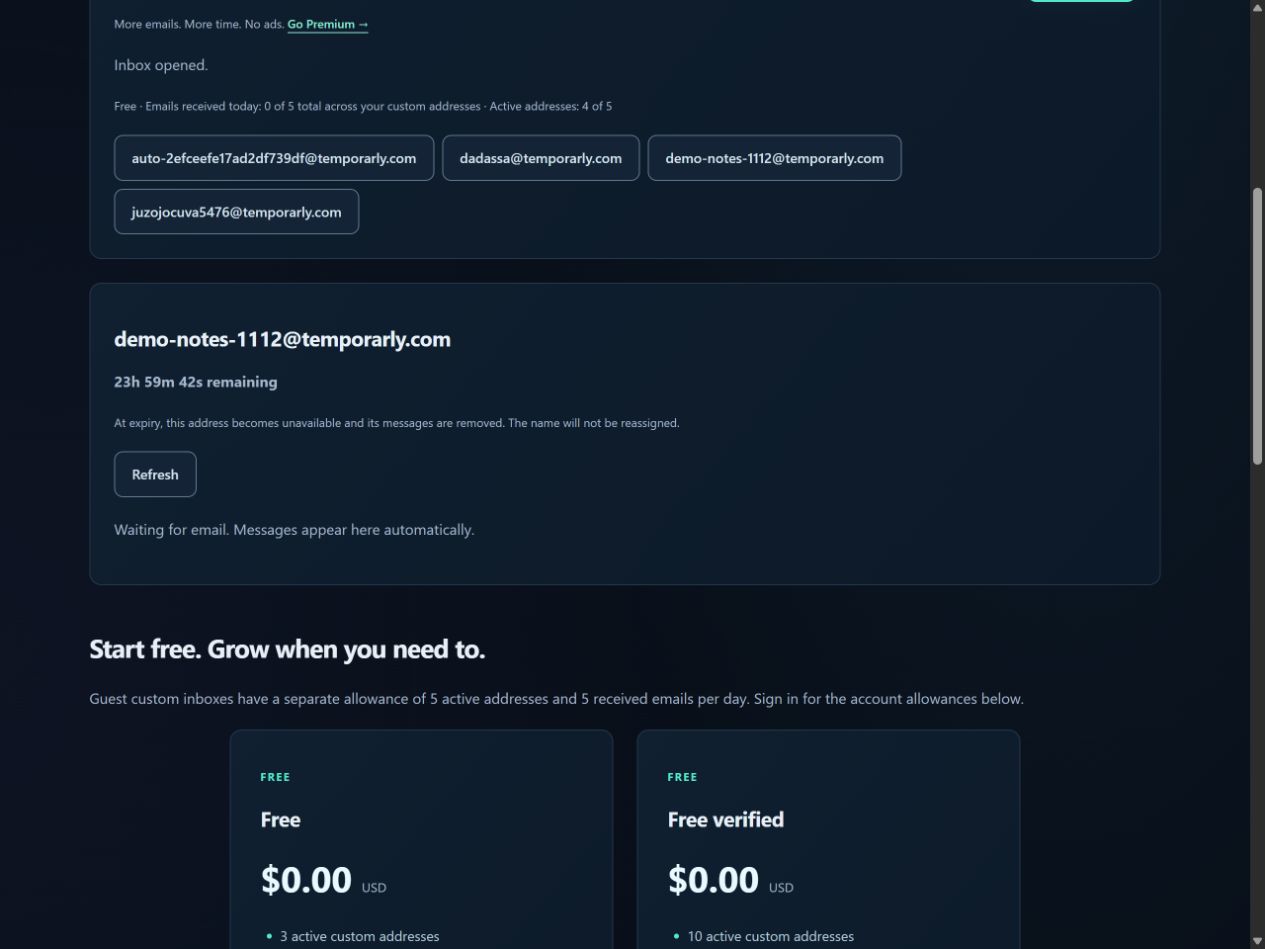
The same result on mobile
The mailbox and refresh control stack vertically. Our demonstration is empty: incoming messages would appear in the waiting area when they arrive.
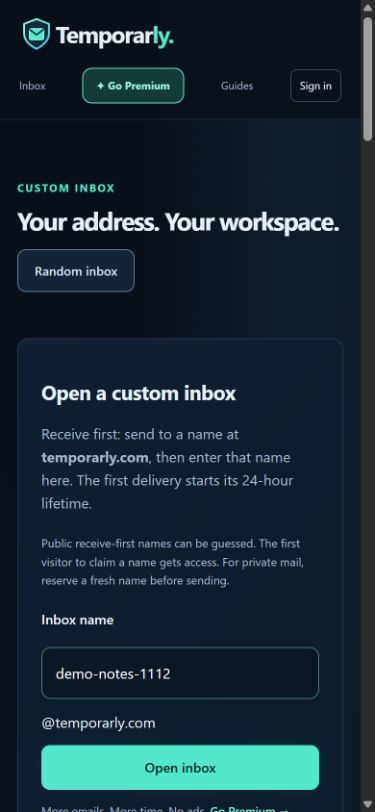
Watch the short step-by-step demonstration. This animation uses real captured interface states. It opens only when selected; the screenshots show the same steps without motion.
Can someone send mail before I open the inbox?
Temporarly supports receive-first mail for eligible available custom names. Someone can send to that name first; you can then enter the same name in the custom tool. The first delivery starts its 24-hour guest lifetime. Sending first does not reserve ownership for you.
Unclaimed receive-first names are public and can be guessed. The first visitor who claims an available name gets access. Do not send confidential information to an unclaimed name. For an address reserved to your account, create a fresh account-owned address before using it.
What to check if the inbox is empty
- Compare the complete recipient with the selected mailbox, including the domain.
- Check that the name has not expired or been retired.
- Use Refresh, then allow for the sender's delivery delay.
- Check the received-email allowance shown in your session.
- Confirm that the other website permits disposable email addresses.
Use the right mailbox for the task
Custom temporary email is useful for short test runs or one-off interactions where a project label is easier to remember. Keep real bookings, orders, invoices, dating profiles you want to retain, and recovery emails on a permanent mailbox you control.
Guest custom access currently has a five-address allowance and five received emails per day. Signed-in allowances differ. Compare the current plans for more addresses, longer lifetimes and an ad-free workspace.
Will bookmarking keep a message forever?
No. A bookmark is a shortcut, not an extension of message retention. Address lifetime and any eligible archive policy still apply.
Would a generated address be easier?
If the name does not matter, use the generated temporary email option and copy the full result.